The rythmo band tools
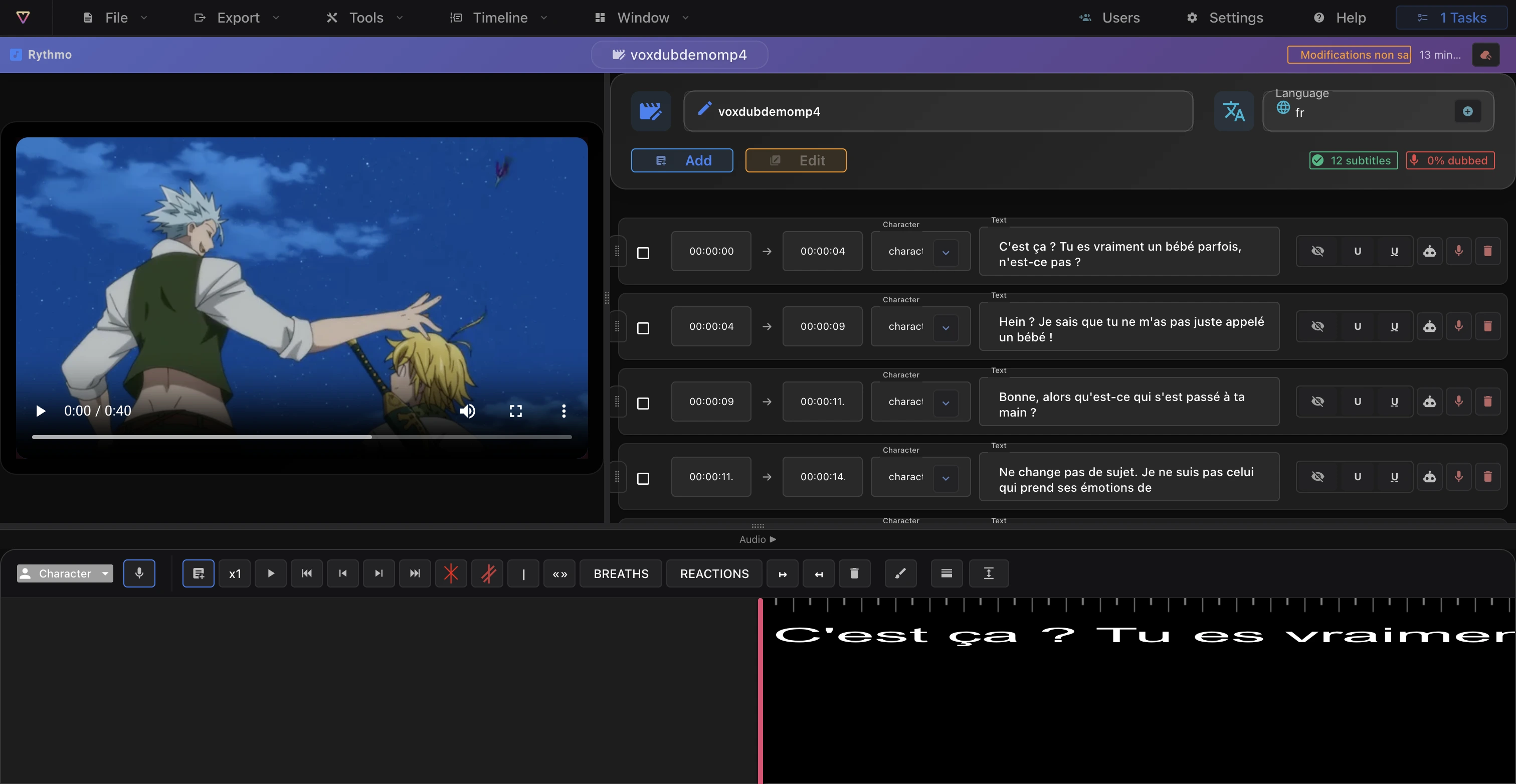
The rythmo band is the heart of the editor: the scrolling strip synced to the video where you write, time and record your lines. Its toolbar gathers the timing tools; the heavier AI jobs live in the Tools menu. All of these features are part of the €12.99/month subscription.
Two anchor points to remember
Every tool acts in one of two places:
- The playhead (the time cursor on the video): markers, notes and cuts are inserted where the cursor sits.
- The selected line: line-level tools (character, voice, per-letter timing) apply to the active line.
Line tools
- Add: inserts a new dialogue line (you choose the row, 1 to 4). Shortcut ⌘ =.
- Cut: splits the selected line in two at the playhead.
- Delete: switches the band to delete mode so you can remove elements.
- Link R / Link L: inserts a link glyph (↦ / ↤) to join a line to its neighbour.
- Per-letter timing: on a line, the letter-timing control lets you fine-tune the spacing of individual letters for lip sync.
Markers and annotations
- End of dialogue: an end-of-dialogue marker with an editable timecode.
- Scene: a manual shot-change marker ("|") placed at the playhead. Its timecode is editable and it can be deleted.
- Note: a director's note («…») dropped at the playhead.
- Breaths: inserts a breath glyph. Options: ↗, ↘, (H), (HH), (mH), (mHH).
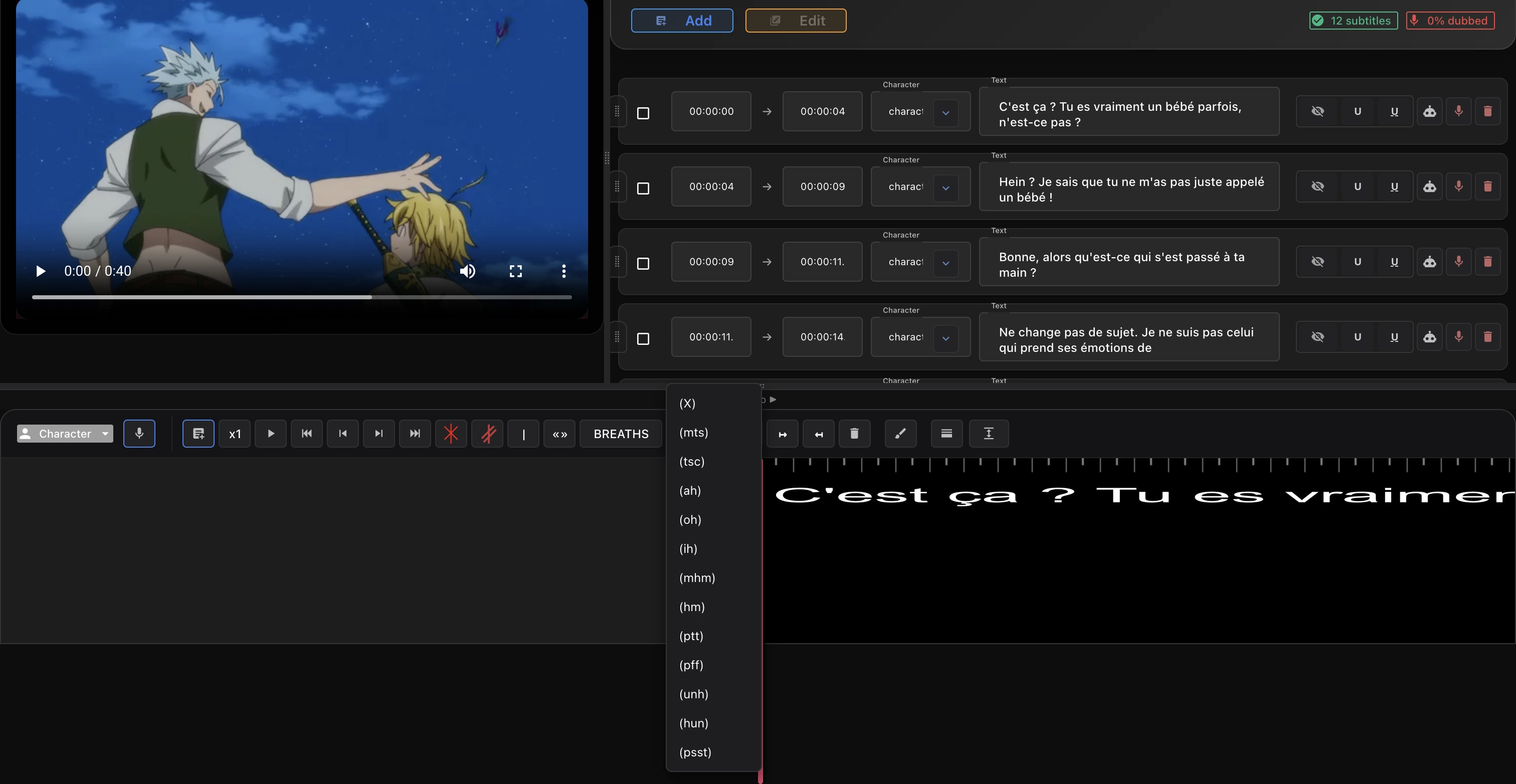
- Reactions: inserts a reaction glyph. 13 symbols: (X)(mts)(tsc)(ah)(oh)(ih)(mhm)(hm)(ptt)(pff)(unh)(hun)(psst).
Loops
- Loop: place recording loops on the band. Loops are recording windows you can jump between and that feed the croisillé export (see Export audio (croisillé)).
- Numbered jump buttons let you move between loops; a clear-loops button removes them all.
Draw, two bands and band height
- Draw: free-hand annotation on the band, with the mouse only (brush and eraser, a set of preset colors, adjustable brush size).
- 2 bands: shows the source band above the translated band, for adaptation (see Translate a band).
- Band height: a menu to set the band height (100 to 300 px). Other band appearance settings (font, colors, background) are in the editor Settings dialog — see Editor display settings.
Playback
- Play/pause, go to start/end, and step frame by frame from the toolbar.
- Playback speed: cycles through speeds (from slow to 2×) for tricky passages.
The Tools menu (AI and processing jobs)
These run as asynchronous jobs on the server (track them in the Tasks window):
- Scene detection: automatic shot-change detection (Pro). On a single-shot video, a 0-scene result is normal.
- Automatic subtitles: AI speech-to-text that generates timed lines from the audio (Pro).
- Translate subtitles (BETA): AI translation of the band into another language (Pro). See Translate a band.
- Generate AI voice (BETA): generates a synthetic voice for the selected line (Pro). See Generate an AI voice.
- Enhance your voice: an audio denoise pass on your recording.
- Replace the video (no voices): swaps in a version of the video with the original voices removed.
Subtitles on the video
- Toggle the subtitle overlay on the video from the Display menu ("Subtitles on video") or the Appearance settings.
Studio mode
- Studio mode (Display menu, a Pro feature) hides the script panel and enlarges the video for focused work on the band.
The keyboard shortcuts are in Keyboard shortcuts.
Ready to dub your video?
Create an account and start your first project in minutes, right in your browser. 7-day free trial.
Try Voxdub for free