Editor keyboard shortcuts
Keyboard shortcuts speed up the editor: playback, frame-by-frame navigation, adding a line, recording and saving all happen without leaving the keyboard.
Key convention
- ⌘ = Cmd on Mac, Ctrl on Windows and Linux.
Shiftis the Shift key.
Playback and navigation
| Action | Shortcut |
|---|---|
| Play / pause | Space |
| Next / previous frame | → / ← |
| Forward / back one second | Shift + → / ← |
| Nudge the playhead (scrub) | ⌘ + mouse wheel |
The frame step is one video frame at a time. ⌘ + wheel moves the playhead frame by frame over the video; it is not a zoom.
Editing
| Action | Shortcut |
|---|---|
| Add a dialogue line | ⌘ = |
| Start / stop recording | ⌘ K |
| Save the project | ⌘ S |
| Undo | ⌘ Z |
⌘ K toggles recording of your voice for the active line: press once to start, again to stop. See Record your voice.
⌘ S saves the project to the server. See Autosave and undo.
To delete an element from the band, use the Delete tool in the rythmo toolbar (it switches the band to delete mode); there is no delete keyboard shortcut.
About undo
Undo (⌘ Z) steps back through your recent edits. It is one-way: there is no redo. Save often with ⌘ S, and export a copy of your subtitles or DETX before a risky operation if you want a backup you can reload. See Autosave and undo.
Where to find the list in the app
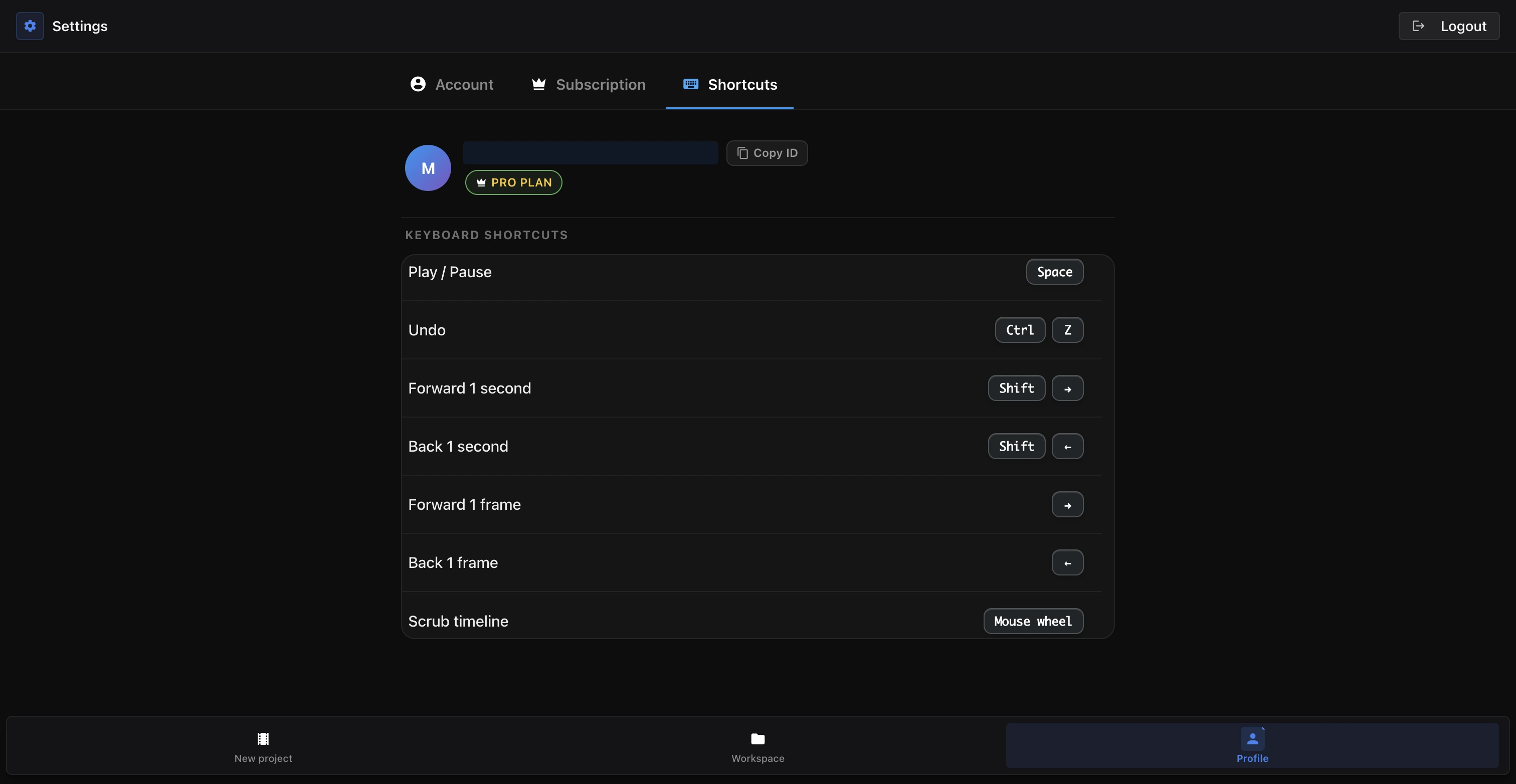
The reference list is available inside the app, under your account Settings:
- Settings › Shortcuts — the built-in list (playback, navigation, undo and scrub).
When shortcuts are inactive
Editing and navigation shortcuts do not fire while you are typing in a field (for example when editing a line's text or a character name): the keys are used to type instead. Click outside the field, or confirm your entry, to reactivate the shortcuts.
Ready to dub your video?
Create an account and start your first project in minutes, right in your browser. 7-day free trial.
Try Voxdub for free