Autosave and undo
Voxdub protects your work with autosave, a manual save to the server, and undo. There is no separate version-history panel: this article explains what actually happens and how to avoid losing work.
Two ways your work is saved
- Autosave: when it is enabled, the project saves periodically to the server while you edit.
- Manual save (
⌘ S, the save button, or File › Save project): forces an immediate save to the server.
Both write to the same project on the server. Reloading the page reopens the last saved state.
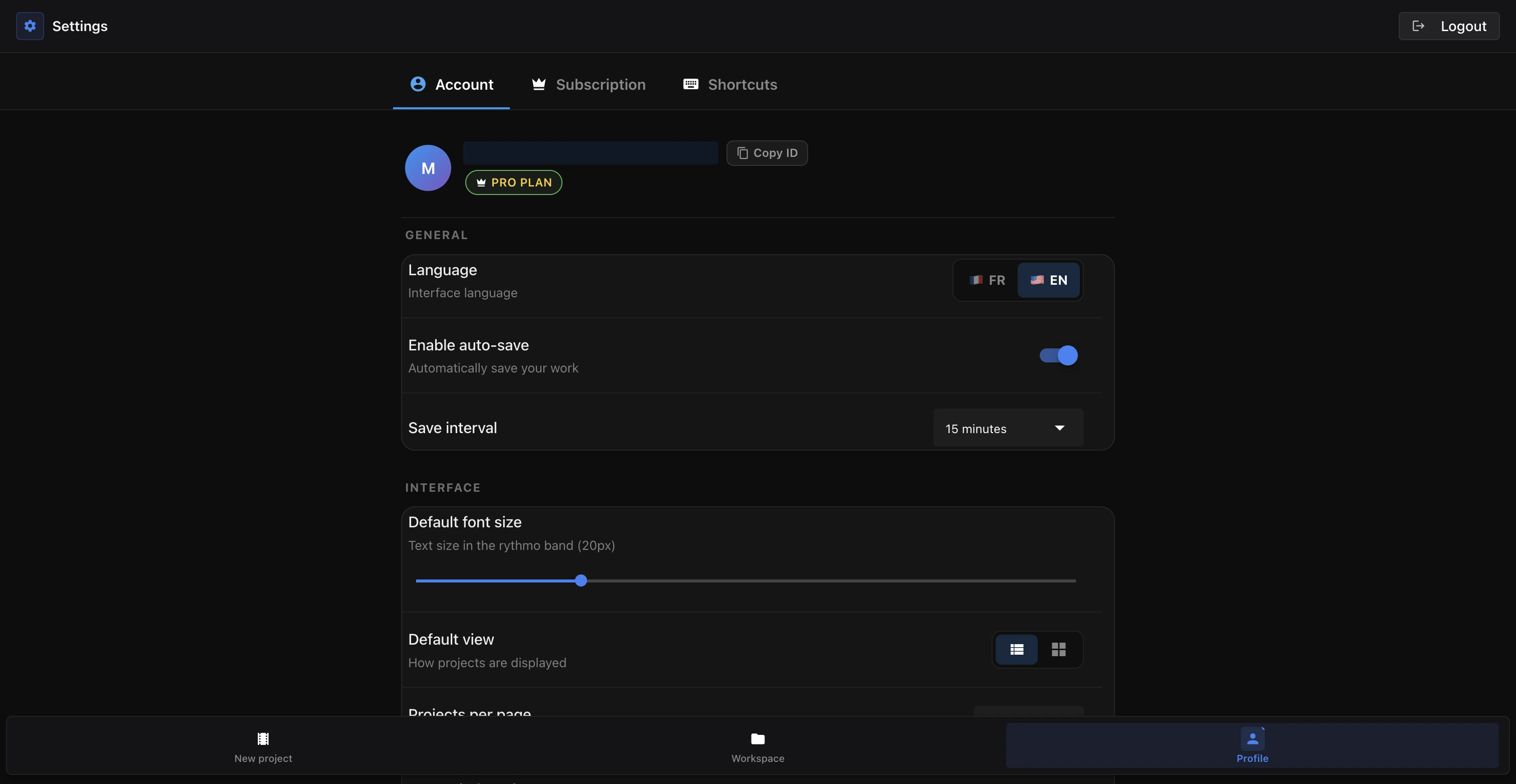
Configure autosave
Autosave is managed on your account Settings page, under Account › General:
- Turn Enable auto-save on or off.
- Choose the Save interval: 5, 10, 15 or 30 minutes (15 by default).
The save indicator
The editor's top bar shows the current save state:
- Saved (or "Saved N min ago") — everything is up to date.
- Saving… — a save is in progress.
- Unsaved changes — recent edits haven't been saved yet. Press
⌘ S. - Auto-save off — autosave is disabled; save manually with
⌘ S.
Undo
⌘ Zsteps back through your recent edits.- Undo is one-way: there is no redo, and there is no list of past versions to restore.
- Use it for a one-off mistake (a line deleted by accident, an edit you regret).
Keep an external backup
Because there is no version history, if you want a copy you can reload later, export your work to a file before a risky operation (import, detection, replacing the video):
- File formats: SRT, ASS, JSON or DETX from the Export menu. See Export subtitles and DETX.
- You can re-import a DETX or subtitle file later to restore those lines.
Troubleshooting: my changes seem lost
- The indicator stays on "Unsaved changes": press
⌘ S. If it doesn't switch to "Saved", check your connection. - A one-off mistake: use
⌘ Z. - A job (translation, AI voice, detection) seems stuck: these tasks are asynchronous and don't affect your saved project. See Background jobs and emails.
Key takeaways
- Autosave (5/10/15/30 min) plus
⌘ Skeep your project saved on the server. ⌘ Zundoes recent edits (one-way, no redo).- There is no version history; export a file if you want a reloadable backup.
Ready to dub your video?
Create an account and start your first project in minutes, right in your browser. 7-day free trial.
Try Voxdub for free