Translate a band and show subtitles
Voxdub can automatically translate the text of your rythmo band into another language, then show those lines as subtitles on the video. The translation is a starting point for adaptation: you stay free to rework each line before recording or export.
All of these features are part of the €12.99/month subscription.
Translate a band
The Translate subtitles tool (in BETA) is in the Tools menu. It launches an AI translation of the band text into the target language.
- Choose the target language, then start the translation.
- It runs as an asynchronous job in the background: you can keep working.
- When the job finishes, the band updates with the translated text.
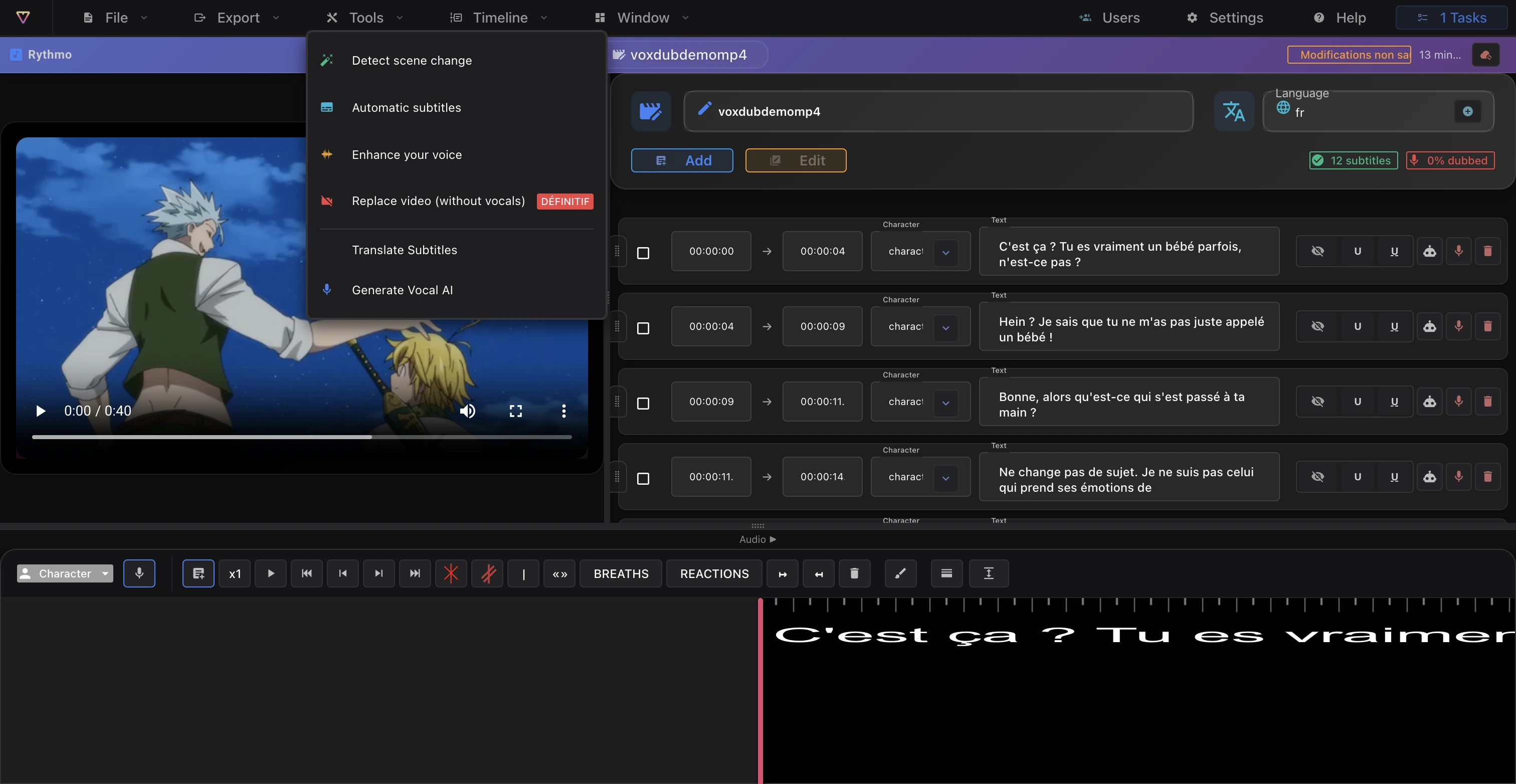
The AI translation is a first draft. Review and adapt the lines in the script panel: lip sync, length, tone and register all stay under your control.
Track the job in Tasks
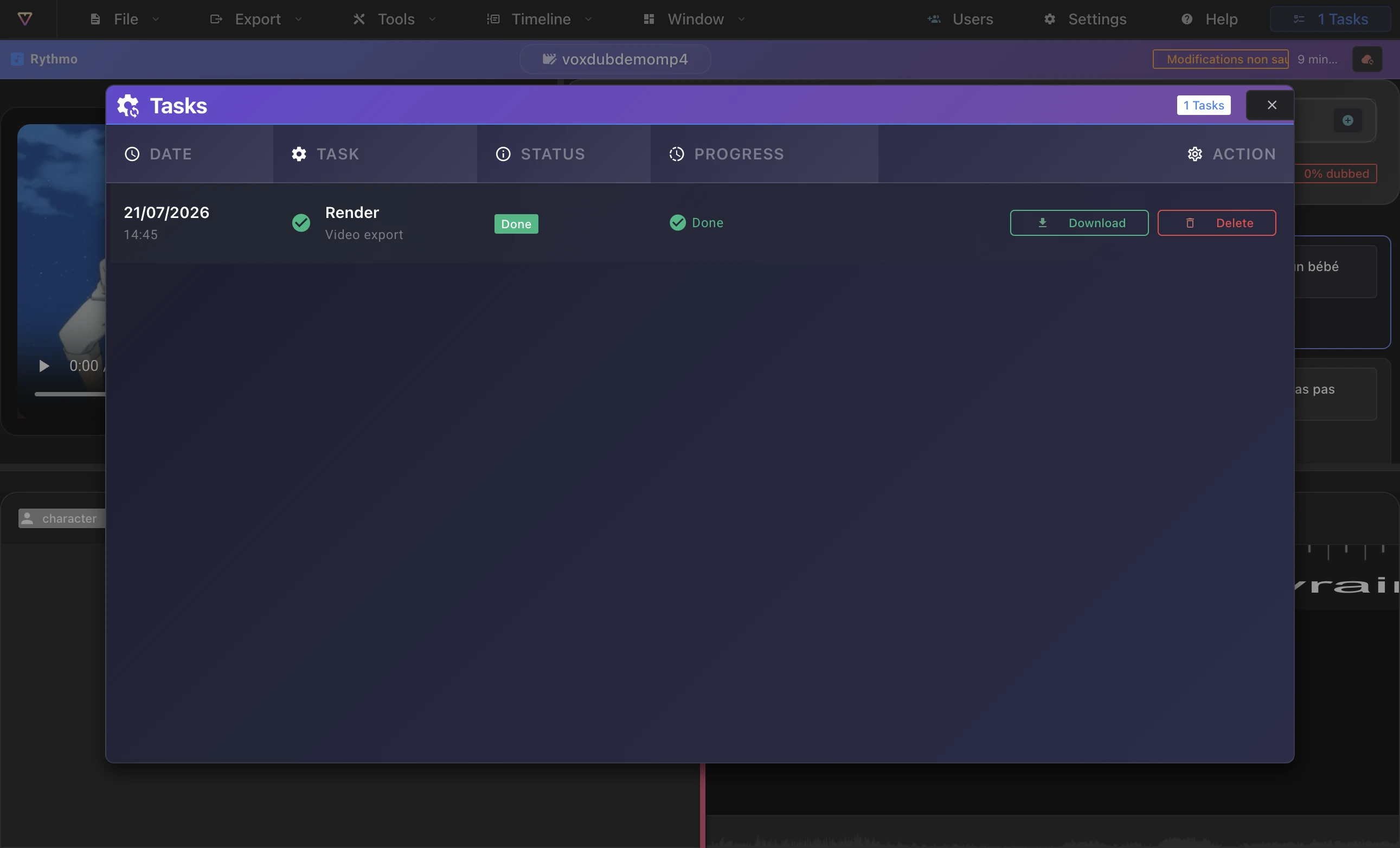
Since this is a background job, follow it in the Tasks window (open it from the Tasks button in the editor):
- You'll see the translation job and its status.
- The band updates automatically once the job is finished.
See Background jobs and emails.
Compare original and translation (2 bands)
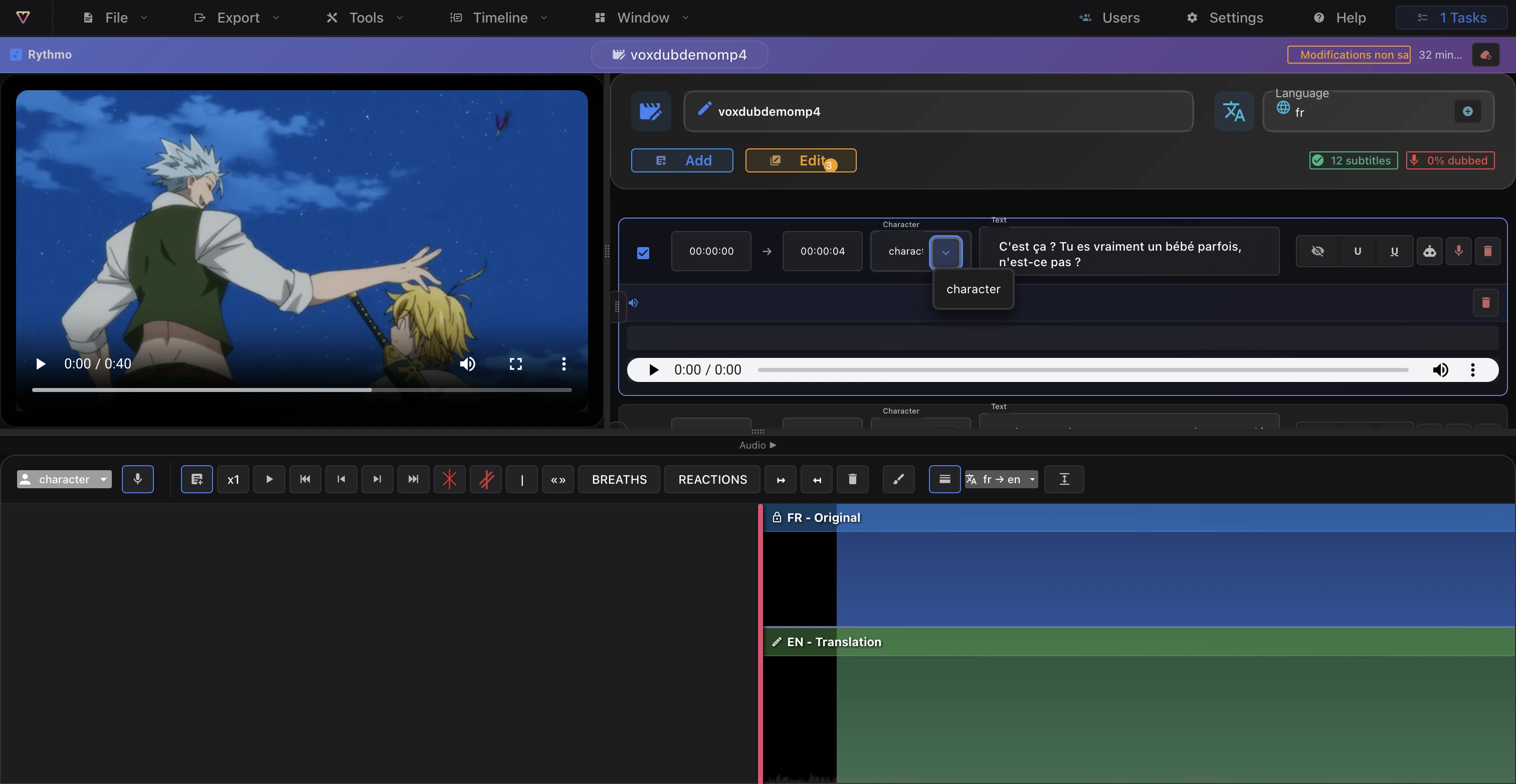
The 2 bands tool in the band toolbar shows the source band above the translated band — ideal for adaptation:
- Compare the original and the translation line by line.
- Keep the meaning of the original in view while you rework the translation.
- Each line stays editable in the script panel.
Show subtitles on the video
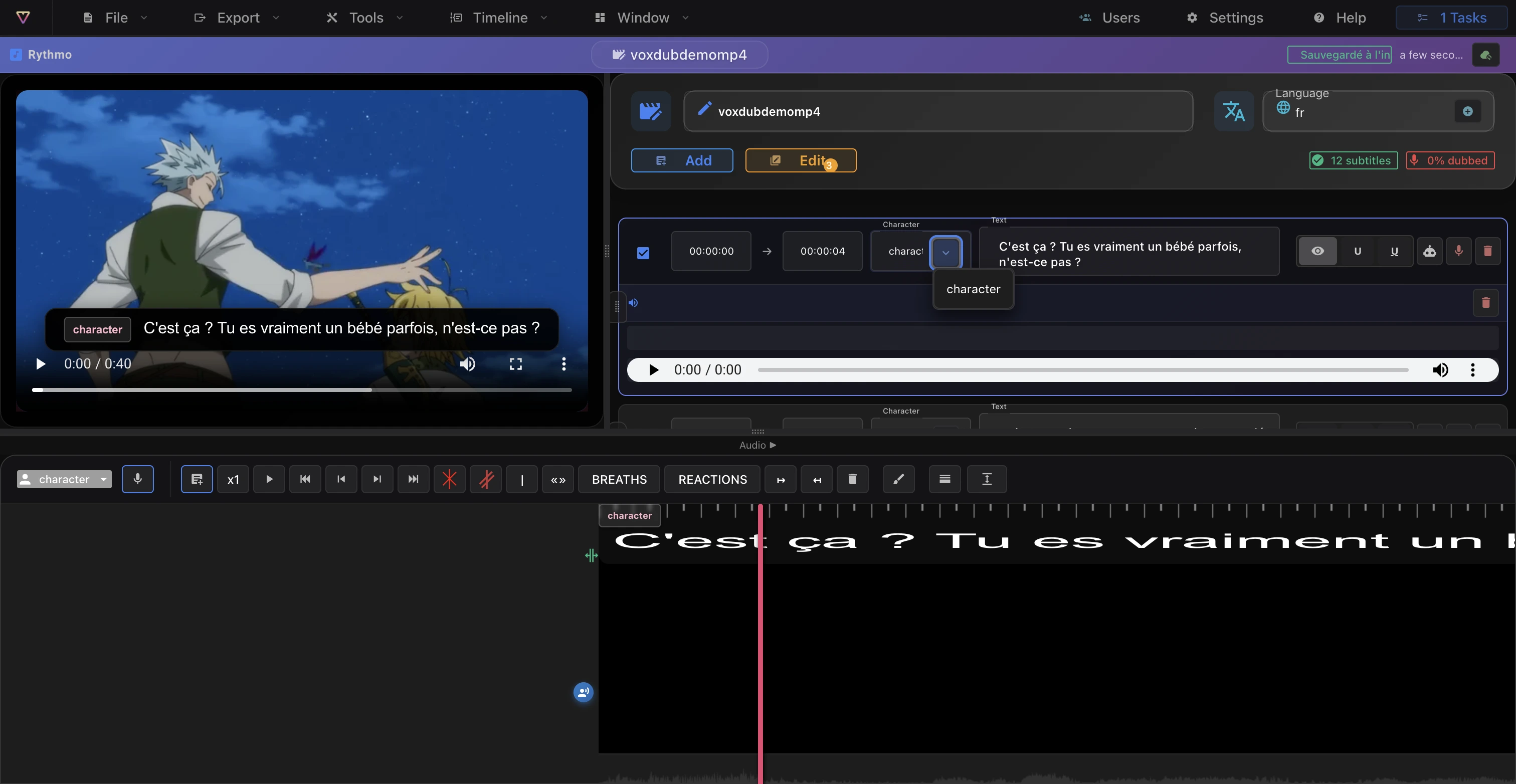
Toggle the subtitle overlay from the Display menu ("Subtitles on video"), or in the editor Settings Appearance tab:
- The band's dialogue lines feed the on-screen subtitles.
- What you fix in the script is reflected in the displayed subtitles.
- Toggle it again to hide them.
Export subtitle files
The on-screen display is an aid inside the editor. To produce subtitle files (SRT, ASS, DETX, JSON), use the Export menu. See Export subtitles and DETX.
Going further
- The rythmo band tools — the band toolbar and 2 bands mode.
- Editor display settings — the subtitles-on-video toggle and band appearance.
- Export subtitles and DETX — generate the SRT, ASS, DETX, JSON files.
Ready to dub your video?
Create an account and start your first project in minutes, right in your browser. 7-day free trial.
Try Voxdub for free