Browsers and performance
Voxdub runs directly in your browser, with nothing to install. Your choice of browser and a good internet connection make a real difference to editing, recording and rendering.
Recommended browser
- Use a modern Chromium browser: Chrome or Edge. That's where Voxdub works best, especially for recording your voice and rendering video.
- Keep your browser up to date: recent versions handle audio, video and memory better.
- Nothing to install: Voxdub is a web app, so you just open your project in the browser.
A desktop app also exists for macOS and Windows, as an option. It's neither required nor better than Chrome or Edge: if in doubt, stick with a Chromium browser.
Internet connection required
Your project and heavy processing run on Voxdub's servers, not on your machine:
- AI voice, Translate, Scene detection and rendering all run server-side.
- A stable connection is needed while you work, and especially during an export.
Server-side export
For long videos, the export is rendered frame by frame on the server. In practice:
- Export doesn't depend on your computer's power: a modest machine can still export a long video.
- But you need a stable connection until the render finishes. Avoid closing the tab or dropping the network mid-export.
The editor is slow or frozen
A few reflexes fix most cases:
- Reload the page. Your saved work is kept (see below).
- Close other memory-heavy tabs (video editing, streaming, lots of tabs).
- Update your browser if you haven't already.
- Allow the microphone when asked: without it, recording (⌘ K) can't start.
What's kept before you reload
- Autosave and ⌘ S save your project to the server (see Autosave and undo).
- Reloading reopens the last saved state. There is no version history, so if the save indicator shows "Unsaved changes", press ⌘ S before reloading.
"Nothing is happening": lag or processing in progress?
Slowness, or a screen that "won't move", often comes from a server job still running, not a frozen browser.
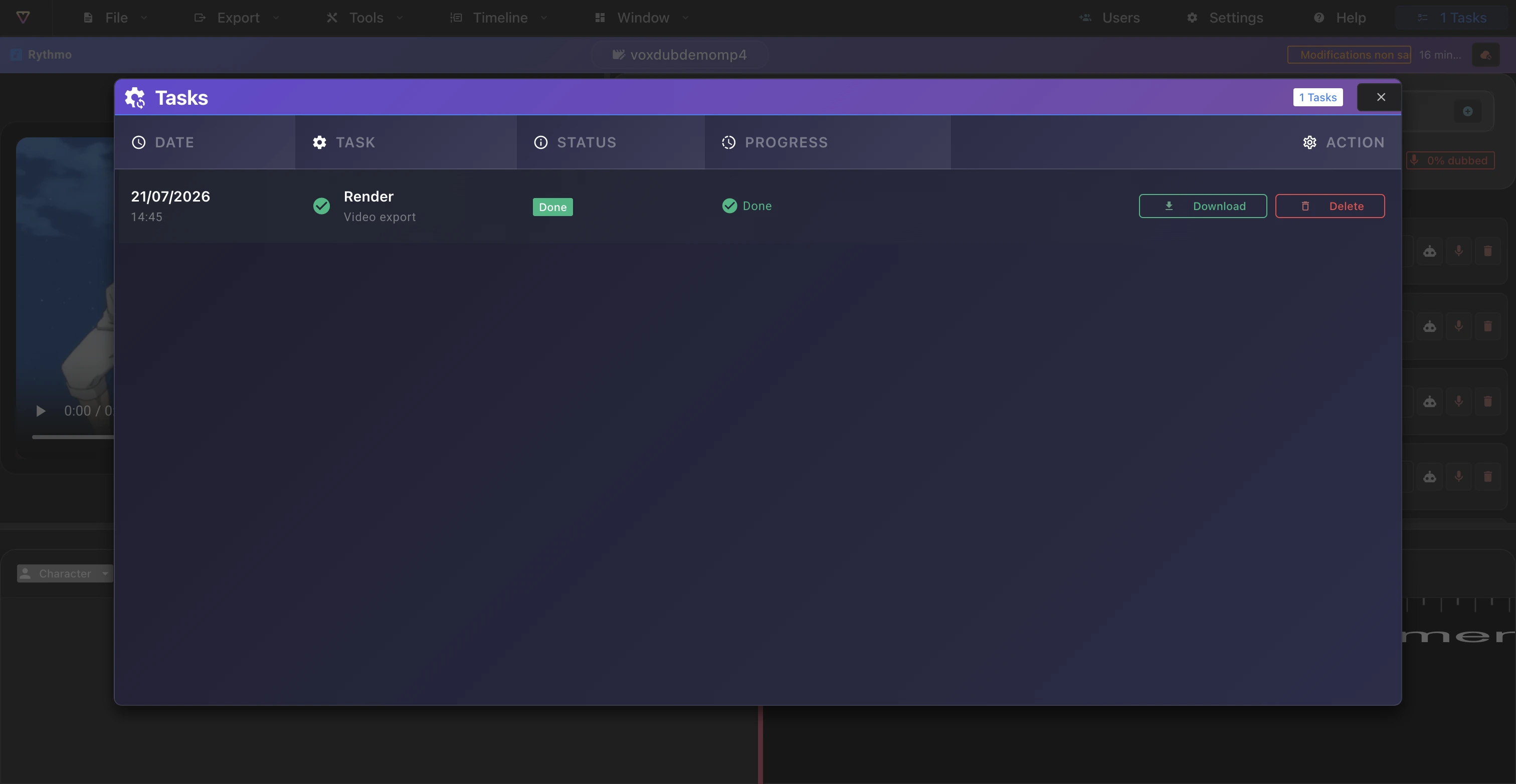
- Jobs like AI voice, Translate, Scene detection or rendering are asynchronous: the result appears once finished.
- If nothing shows up immediately after launching one, the job is probably still processing.
To track jobs and completion emails, see Background jobs and emails.
Microphone permission
Recording your voice needs microphone access:
- When you start a recording (⌘ K), the browser may show an Allow prompt. Accept it.
- This permission is per browser and per site: if you switch browsers or deny it by mistake, grant it again in the site settings.
If the problem persists
Contact us with your browser and your operating system:
- Discord: https://discord.gg/RrmKMBsYFy
- Email: hello@voxdub.com
Ready to dub your video?
Create an account and start your first project in minutes, right in your browser. 7-day free trial.
Try Voxdub for free